
Player guide
Get started with Virtual Hall®
Discover the essential controls at your own pace. This guide describes the web player as presented; some controls may vary by concert, browser and device.
At a glance
- Start playback when you are ready.
- Choose your seat from the viewpoints.
- Drag the image to look around.
In this guide
1. Start the experience
Example in the player
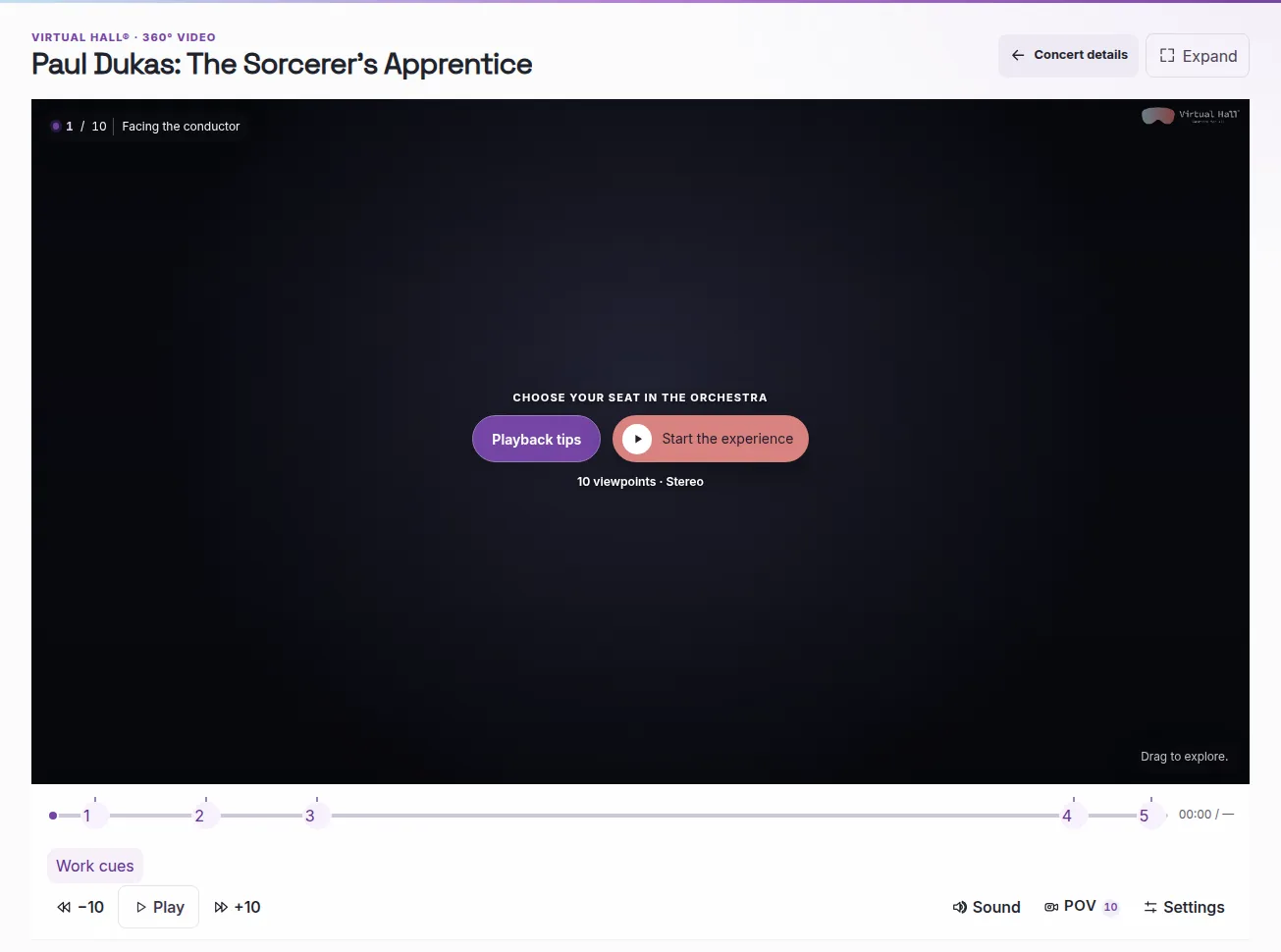
Playback does not start automatically. Select “Start the experience” when you are ready. Then use Play/Pause, the volume control and the 10-second back and forward buttons.
- The Space bar starts or pauses playback.
- Left and Right Arrow move playback by 10 seconds.
2. Adjust quality
Example in the player
To find the right balance between sharpness and smooth playback, start with “Auto (network)” when it is available. Open the player settings, then the “Available quality” section.
- The image is blurry, but time is moving forward? It is not frozen. With Auto active, sharpness can change; a higher resolution may help if the connection and device can handle it.
- Playback pauses or stutters? Try Auto, or lower the resolution when a choice is available. Close other resource-intensive tabs and use an up-to-date browser.
- Changing quality may require a brief preparation time. If the issue persists, it may also be caused by the browser, device, or stream: the connection is not the only possible cause.
Options vary depending on the view, browser, and device. On some iPhones and iPads, the player uses a progressive stream: do not expect an automatic increase in quality on this playback path.
“Remember my progress on this device” is a separate option: when enabled, it stores the view, playback position, and viewing direction locally. It does not improve image quality and does not sync your progress across devices.
3. Choose your seat
Example in the player
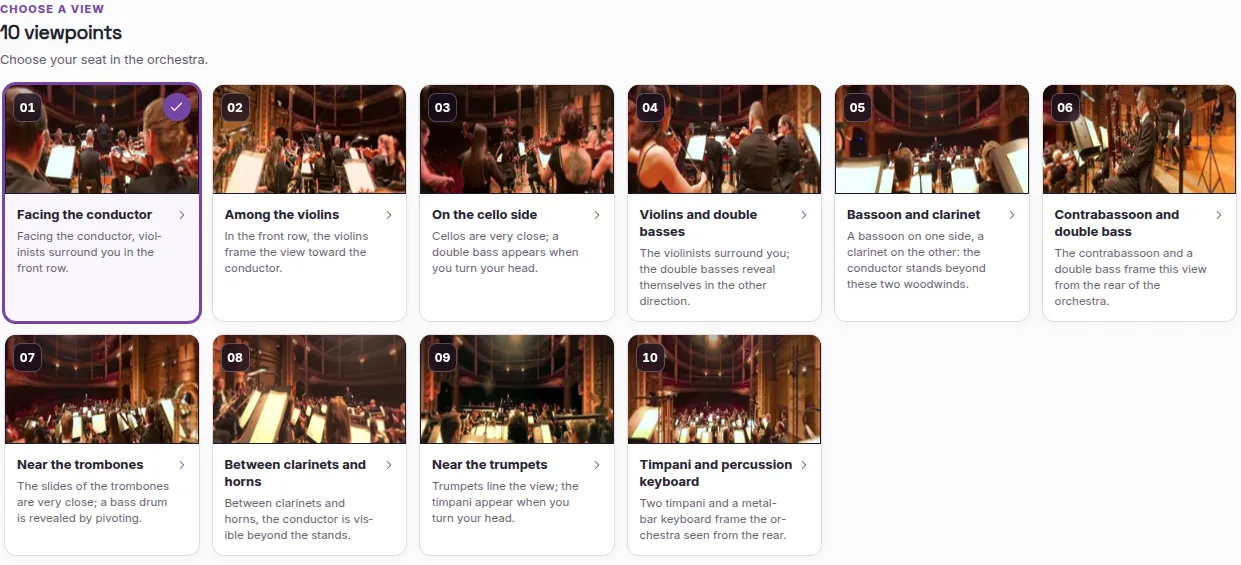
Choose a seat from the cards or the “Viewpoints” button. Each viewpoint prepares a different stream. The previous view may keep playing while it is prepared. Wait for the new view; if an error message appears, try again or choose another viewpoint. POV means “point of view”: the number on the button shows how many camera views are available.
- A viewpoint change may need some preparation time.
- Keys 1–9 and 0 let you choose a viewpoint.
4. Explore in 360°
Example in the player
Drag with a mouse or finger inside the image to explore the 360° scene. Gyroscope control is optional and works only on compatible devices and browsers. Safari may ask for permission to track motion.
- You can always explore by dragging the image.
- Allow motion only if you want to use this feature.
5. Enlarge the player
Example in the player
Select “Enlarge” for a more immersive view. On a phone, turn the device to landscape. If rotating does not change the display, turn off rotation lock if needed. Use “Exit” or Escape to close the enlarged display.
- Some options can be shown or hidden by the native control when it is available.
- Escape can also close a panel or leave the enlarged display.
6. Read the markers
Example in the player
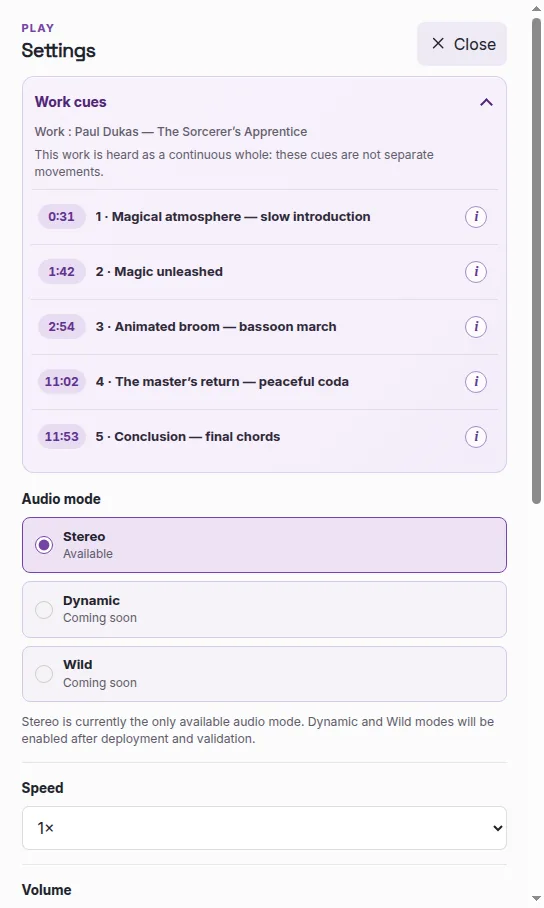
Work markers appear only when they are included. Choosing a chapter on the progress bar and the camera number refer to different things: a camera number is not a movement number. Current audio is high-fidelity stereo. Modes labelled “coming soon” are not available yet. The PICO/Meta VR app works differently from the web player.
- Use available markers to find your place in the work.
- See the VR app for its own controls.
Virtual Hall®
Try it with Guillaume Tell
Try the player controls with William Tell. The screenshots in this guide show The Sorcerer’s Apprentice as an example; controls are shared across concerts where available.
When playback needs an adjustment
Why is the image blurry?
Auto mode may adjust detail when it is offered. Some streams have fixed quality. A less sharp image can also depend on rendering, your connection, browser or device. Choose lower or higher quality only when that setting is available.
Why does playback stutter?
Close other tabs, use an up-to-date browser and, where available, lower the quality. Smoothness depends on several factors, including the connection, browser and device.
Why does a new viewpoint take time to appear?
A new viewpoint prepares another stream, and the previous view may keep playing while this happens. Wait a moment. If an error message appears, try again or choose another viewpoint.
Why does my phone not follow my movements?
Gyroscope control is optional and depends on device and browser compatibility. Enable it only when it is offered; Safari may ask for permission. You can always explore by dragging the image.
Keyboard shortcuts
- Space: play / pause
- Left and Right Arrow: -10 s / +10 s
- 1–9 and 0: choose a viewpoint
- Escape: exit or close